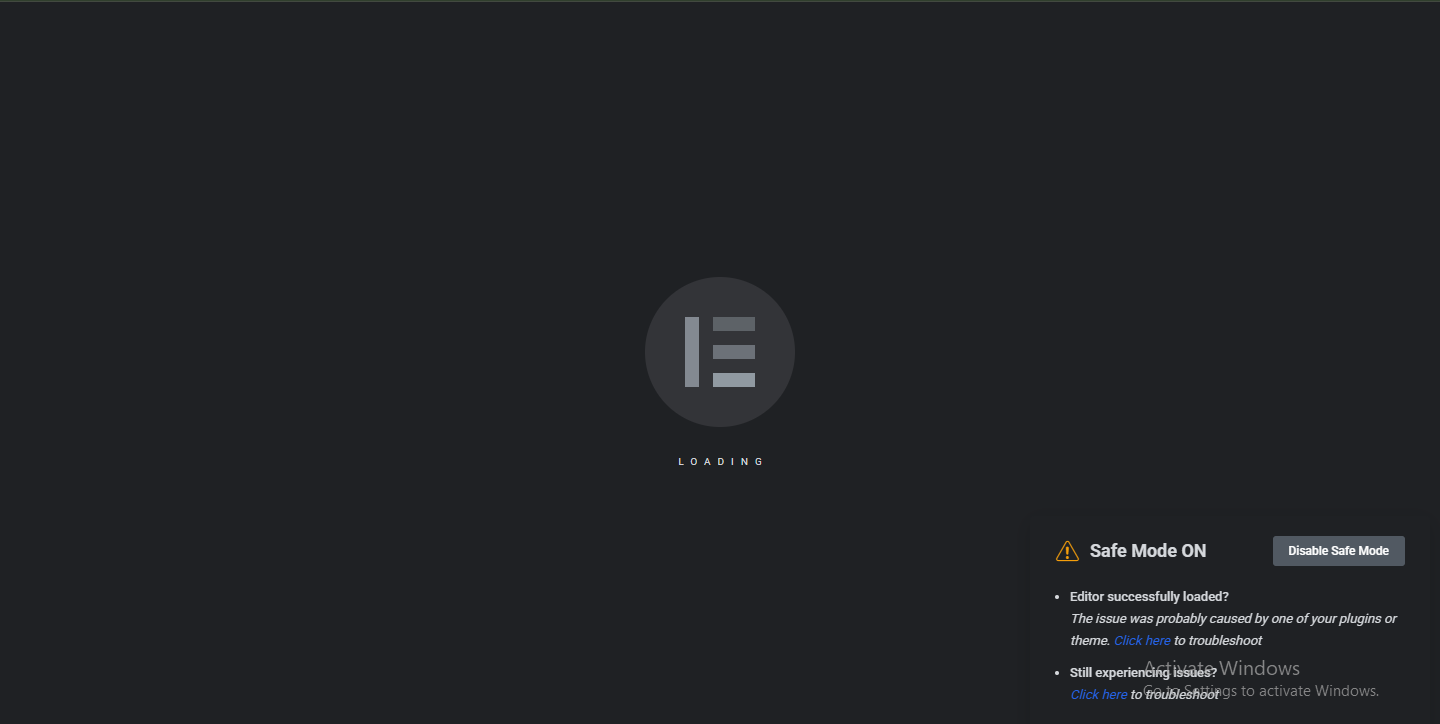
Elementor is one of the most popular WordPress page builders, but sometimes the editor refuses to load, gets stuck on the loading screen, or behaves unexpectedly. If you’ve ever seen the “Elementor editor not loading” issue, Safe Mode is your best first step.
This guide explains what Elementor Safe Mode is, when to use it, and how to fix issues step by step.
What Is Elementor Safe Mode?
Elementor Safe Mode is a troubleshooting feature that temporarily disables:
- All third‑party plugins
- Your active WordPress theme (loads a default theme instead)
This helps you identify whether the issue is caused by a plugin conflict, theme issue, or server configuration—without affecting your live website.
👉 Important: Safe Mode only affects your browser session, not visitors.
Common Elementor Editor Issues Safe Mode Can Fix
- Elementor editor stuck on loading screen
- White screen or blank editor
- Widgets not loading or missing
- Drag‑and‑drop not working
- JavaScript errors in the editor
- Editor loads but page content is empty
How to Enable Elementor Safe Mode
Method 1: From Elementor Settings
- Go to WordPress Dashboard → Elementor → Tools
- Open the Safe Mode tab
- Click Enable Safe Mode
- Reload the Elementor editor
Method 2: From Error Screen
If Elementor shows an error message:
- Click Enable Safe Mode directly from the popup
Step‑by‑Step: Fixing Issues Using Safe Mode
Step 1: Check If Editor Works in Safe Mode
- If Elementor loads correctly, the issue is caused by:
- A plugin conflict
- Your active theme
- If Elementor still fails, the problem is likely:
- Server configuration
- PHP memory limit
- Outdated PHP version
Step 2: Identify Plugin Conflicts
- Exit Safe Mode
- Disable all plugins except Elementor
- Try opening the editor
- Enable plugins one by one
- Reload Elementor after each activation
📌 When the editor breaks again, you’ve found the conflicting plugin.
Step 3: Check Theme Compatibility
- Activate a default theme (Hello Elementor / Twenty Twenty‑Four)
- Open Elementor editor
If it works:
- Your theme may have outdated code
- Contact theme support or update the theme
Step 4: Fix Server‑Side Issues
If Safe Mode doesn’t help, try these fixes:
Increase PHP Memory Limit
Add this to wp-config.php:
define('WP_MEMORY_LIMIT', '256M');
Use Recommended PHP Version
- Elementor works best with PHP 8.0 or 8.1
- Avoid outdated versions like PHP 7.2
Enable REST API & Loopback
Check:
Tools → Site Health
Fix any critical issues shown.
Add mod_substitute Fix in .htaccess
In some hosting environments, Elementor editor issues are caused by server-side content filtering or line-length limitations. Adding the following rule to your .htaccess file can help resolve such problems.
Step: Add mod_substitute Rule
- Open your website’s root
.htaccessfile - Add the following code at the top or bottom of the file:
<IfModule mod_substitute.c>
SubstituteMaxLineLength 10M
</IfModule>
Why This Fix Works
- Prevents Apache from breaking long inline scripts
- Fixes Elementor editor not loading in some shared hosting setups
- Helps avoid JavaScript corruption issues
⚠️ Note:
- This works only if
mod_substituteis enabled on your server - If you get a 500 error, remove the code and contact hosting support
Clear Cache & Regenerate Files
After fixing conflicts:
- Go to Elementor → Tools
- Click Regenerate Files & Data
- Clear:
- Browser cache
- Plugin cache
- Hosting cache (if available)
Common Mistakes to Avoid
- Editing core Elementor files
- Using nulled or cracked plugins
- Running incompatible plugin versions
- Ignoring JavaScript console errors
Pro Tips for Stable Elementor Performance
- Always update WordPress, Elementor & plugins
- Use Hello Elementor theme for best compatibility
- Avoid installing too many page‑builder addons
- Enable debug mode when troubleshooting



Leave a Reply